How to set your laptop to Hibernate automatically after closing the lid.
In a Windows laptop or a desktop, hibernation is a power-saving feature that works by saving the content in memory onto the hard drive.
This allows a complete shutdown of the device to extend battery life without losing your current work. So the next time you resume by pressing on the power on button, the previous session will load into memory, allowing you to pick up where you left off.
This feature will come in handy when you aren’t using the device for an extended period, or when running out of battery.
In this post, we’ll walk you through the steps to enable and set your laptop to Hibernate automatically after closing the lid to extend battery life on your laptop and preserving your current session on resume.
You may face a situation when you just need to close the Lid of your Laptopand go.
If you did not configure your laptop what to do when you close the Lid. There is every chance that you may lose whatever you were working on at the time.
Keeping your Laptop in SLEEP mode might work if you are going for a few minutes, but for longer periods it’s not advisable.
Because Sleep mode utilizes your Laptop battery. So the best thing to do is to configure and set your laptop to go in hibernation Automatically.
This way you don’t lose your work. And the next time when you press on the power on the button your laptop will wake up in the same window where you left with all your work window open.
Configure your laptop power options
Follow these steps to set your laptop to Hibernate automatically after closing the lid.
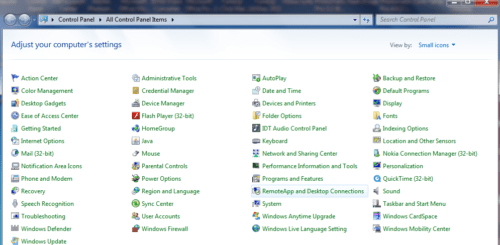
Step 1: Open Control Panel – click on the “Power options” icon
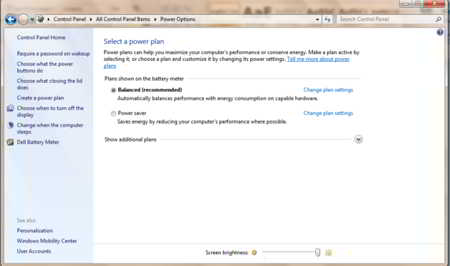
Step 2: On the left panel click on “Choose whatclosing the Lid does”
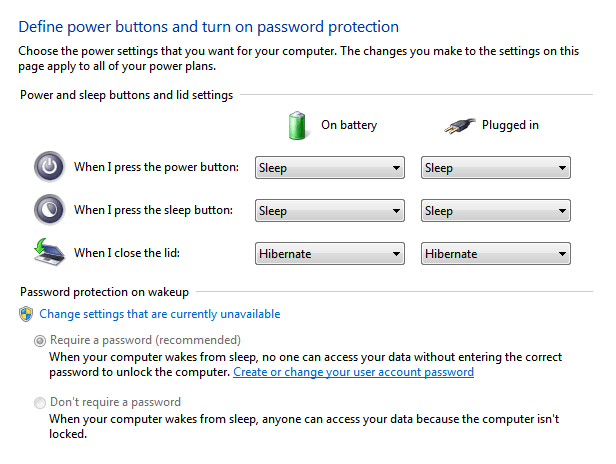
Step 3: On the next window that opens under the “Power and sleep buttons and Lid settings” you will see three options.
Under the third option “When I close the Lid” click on the drop-down button on both the category “On battery” and “Plugged in “ you will get four options as [ Do nothing/Sleep/Hibernate/Shutdown ] click on HIBERNATE and than click on Save changes, Apply and OK. That’s it, you have successfully configured and set your laptop to Hibernate automatically after closing the lid.
Next time when you are in a hurry or need to relax, just close your Laptop lid, your system will go into hibernation mode, and when you press the power button, you are back where you left with all you work window open exactly as you left.
Hello! I am Ben Jamir, Founder, and Author of this blog Tipsnfreeware. I blog about computer tips & tricks, share tested free Software’s, Networking, WordPress tips, SEO tips. If you like my post /Tips then please like and share it with your friends.
We use cookies on our website to give you the most relevant experience by remembering your preferences and repeat visits. By clicking “Accept”, you consent to the use of ALL the cookies.
This website uses cookies to improve your experience while you navigate through the website. Out of these cookies, the cookies that are categorized as necessary are stored on your browser as they are as essential for the working of basic functionalities of the website. We also use third-party cookies that help us analyze and understand how you use this website. These cookies will be stored in your browser only with your consent. You also have the option to opt-out of these cookies. But opting out of some of these cookies may have an effect on your browsing experience.
Necessary cookies are absolutely essential for the website to function properly. This category only includes cookies that ensures basic functionalities and security features of the website. These cookies do not store any personal information.